My CCTV is not recording for as long as I expected!
‘Section from our terms and conditions’
Programming Schedules All installations are bespoke with regard to recording schedules. At the time of installation, we will configure the recording schedule in accordance with the customer’s stated requirements at installation. However, individual preferences and operational needs may change, and we cannot guarantee that the initial configuration will meet all future expectations (for example, recording duration or event coverage). It is therefore the customer’s sole responsibility to review, adjust, and fine-tune their recording schedule as required after installation.
If your CCTV is not recording for a long period, it’s usually due to limited hard drive space or current recording settings.
High-resolution cameras, higher frame rates (FPS), and higher bit rates create large video files, which can fill the hard drive quickly. Once the storage is full, older footage may be overwritten, reducing the total recording time. Other factors, such as motion-only recording schedules, network issues on IP cameras, or improper configuration, can also limit how long video is stored. To extend recording time, you may need to adjust resolution, FPS, or bit rate settings, increase storage capacity, or review the recording schedule.
Resolution is the number of pixels in the image, and higher resolution means more detail and better identification, but requires more storage and bandwidth.
Resolution determines how sharp and detailed the picture is.
What Resolution Affects?
Image Clarity
Higher resolution = sharper image, more detail
Lower resolution = softer image, fewer details
Identification Capability, higher resolution makes it easier to:
Recognise faces
Read number plates
Identify clothing, objects, and actions
Storage & Bandwidth, higher resolution requires:
Higher bit rate
More hard drive space
More network bandwidth
Common CCTV Resolutions, each step up roughly doubles the amount of image data.
2MP (1080p / Full HD) → 1920 × 1080
4MP → 2560 × 1440
5MP → 2592 × 1944
8MP (4K / UHD) → 3840 × 2160
Resolution vs Zoom, higher resolution allows digital zoom without losing as much clarity.
Example: 8MP camera zoomed in digitally will usually retain more detail than a 2MP camera zoomed in.
Both record video, but 25 FPS will show fast movement (running, vehicles, hand movements) more smoothly.
Resolution vs FPS & Bit Rate, resolution works together with FPS and bit rate.
High resolution + high FPS + high bit rate = excellent quality but heavy storage usage
High resolution + low bit rate = blurry, compressed image
Lower resolution + proper bit rate = often better real-world quality
Guidance, higher resolution is not always better if lenses, positioning, and lighting are poor.
Entrances / Till areas → 4MP – 8MP
General coverage → 4MP
Large areas / car parks → 8MP
Basic monitoring → 2MP
FPS, (Frames per Second) controls how smooth motion appears in recorded footage.
FPS is the number of images recorded each second, and higher FPS gives smoother motion but uses more storage.
What FPS Affects?
Smoothness of Video
Higher FPS = smoother motion
Lower FPS = choppier motion
Storage Usage
Higher FPS = more frames stored = more hard drive space used
Lower FPS = fewer frames = less storage used
Bit Rate Demand
Higher FPS generally requires a higher bit rate to maintain quality
Common FPS Values most CCTV systems in the UK run between 7–15 FPS to balance quality and storage.
5 FPS → Very basic monitoring
10 FPS → Acceptable for general surveillance
15 FPS → Smooth movement
25 FPS → Real-time video (PAL standard in UK)
30 FPS → Real-time video (NTSC regions)
Example, camera recording at:
25 FPS captures 25 images every second
12 FPS captures 12 images every second
Both record video, but 25 FPS will show fast movement (running, vehicles, hand movements) more smoothly.
FPS vs Image Quality (FPS does not increase sharpness or resolution, it only affects motion smoothness).
High FPS with low resolution = smooth but not detailed
Lower FPS with high resolution = detailed but less smooth
Bit Rate controls the balance between video quality and storage usage.
Bit rate is the speed of video data being written to storage, and adjusting it directly controls image quality, recording duration, and hard drive usage.
What Bit Rate affects?
Image Quality
Higher bit rate = clearer image, more detail, fewer compression artefacts
Lower bit rate = softer image, blockiness, loss of fine detail
Storage Consumption
Higher bit rate = more hard drive space used
Lower bit rate = less storage used
Network Load (for IP systems)
Higher bit rate = more bandwidth required
Lower bit rate = easier on the network
Constant Bit Rate (CBR) vs Variable Bit Rate (VBR)
CBR (Constant Bit Rate)
Camera always uses the same bit rate
Predictable storage usage
Slightly less efficient
VBR (Variable Bit Rate)
Camera increases bit rate when there is movement or detail
Reduces bit rate when scene is static
Better quality for the same average storage
Bit Rate vs Resolution (1080p, 4MP, 8MP/4K) defines how many pixels are in the image. Bit rate defines
how much data is used to store those pixels.
High resolution with low bit rate = poor quality
Lower resolution with adequate bit rate = often clearer
Guidance, (per-camera, exact values depend on codec: H.264, H.265, H.265+)
1080p (2MP): 2–4 Mbps
4MP: 4–6 Mbps
8MP / 4K: 8–12 Mbps
Lets have a look at an example:
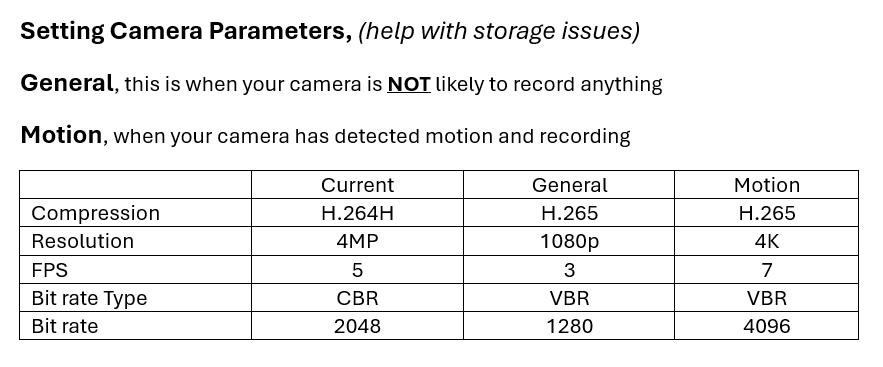
The table and video below show the current settings for Camera 8. We need to adjust these settings for both regular and motion-triggered recording in order to optimize storage on the Hard Disk Drive.